Audio & documents / Library
Build a study Library that you can actually search
Organize PDFs, slides, Word files and images, and check extracted content before using it for AI-assisted study.
Upload for a specific purpose
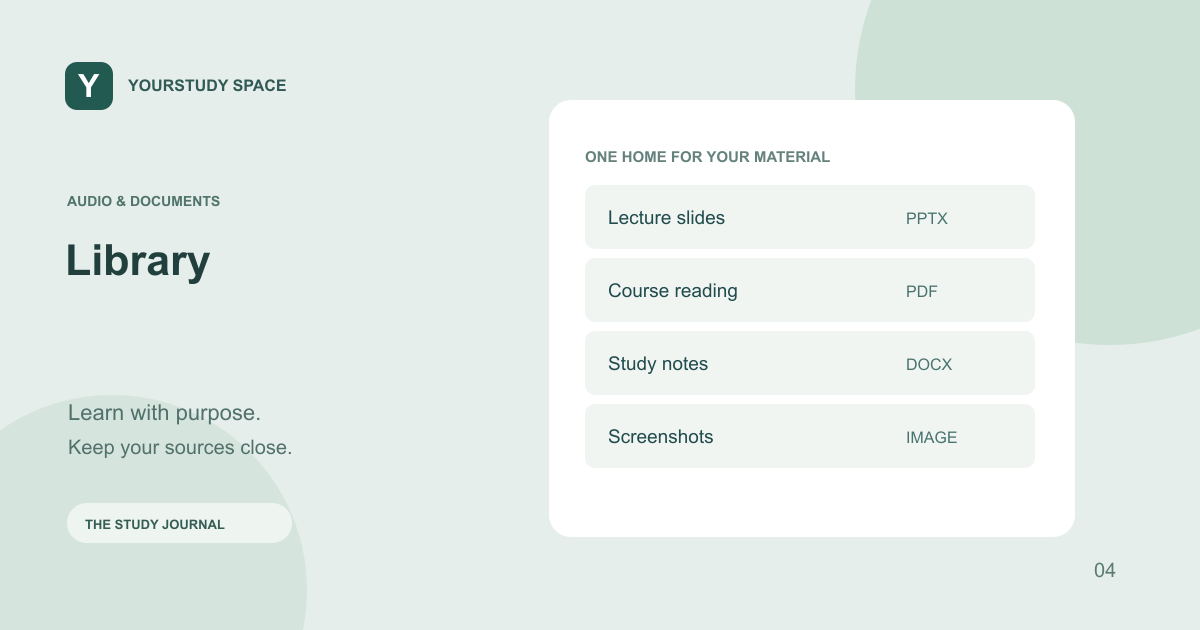
Library holds the material you bring to YourStudy Space. Common study inputs include PDFs, PowerPoint slides, Word documents, text and supported images or screenshots. The upload controls enforce the supported types and size limits; changing a file extension does not convert an unsupported format.
Use recognizable titles and group related content. A hundred files named “lecture” are difficult to choose between even if their text is searchable. Keep the topic and version visible so you can distinguish the final handout from an earlier draft.
Check what the app can read
After upload, wait for the document’s processing status and inspect the extracted text. Text selection in the original file is a useful clue, but it is not a guarantee that tables, symbols and columns will stay in the right order. Screenshots and scanned pages need image reading or OCR and deserve a careful check.
A document title is not evidence of its contents. YourStudy Space’s retrieval works with available extracted passages. If a passage is missing, the app cannot reliably answer about it just because the filename mentions the topic. Repair the source or use a clearer copy when extraction does not preserve the material.
Search passages, not just filenames
Ask can search your Library when you choose the uploaded-material or combined source scope. A focused question gives retrieval something useful to match: include the concept and the distinction you want explained. “What does my lecture say about induction versus maintenance?” is more useful than “Read my files.”
Retrieval selects relevant passages rather than sending every uploaded page into every answer. That helps control context size, but it also means the answer may cover only part of a long document. Use the displayed source references to see which material actually supported the response.
Reuse the same source across tools
Select Library documents in Study podcasts, Study Kit, See it, Explain and Exam Companion where their document selector is available. Select only the sources relevant to the current task. The picker enforces its maximum; splitting a very large task into coherent topics is often easier to review than one mixed set.
TRY THIS NEXT
Before generating anything, open the extracted text and check one paragraph, one table and one numerical detail.
Try it in the app ↗Sign-in and an active trial or membership are required for study tools.About this guide
This product guide was prepared with AI assistance and checked against the app’s implemented workflows. It is not independently clinically reviewed. Features and service availability can change. It contains no real patient information.
For study support only. Review generated content and its sources; do not use it for real-patient diagnosis or treatment. Read the study and AI disclaimer.
Found something that needs correcting? Contact the YourStudy Space team.